

Welcome to our team's website! If you're a player on our roster, this guide will walk you through the process of creating an account and linking it to your player profile. By doing so, you'll unlock personalized features and have better control over your presence on our team's website.
Why Should You Link Your Account?
Linking your user account to your player profile provides several important benefits:
- Personalized Experience
When you link your account, the website recognizes you as a team member and provides customized content tailored to you. - Interact with Content
You'll be able to comment on news posts, blog articles, and engage with the team community. - Access Your Statistics
View your personal game statistics, performance metrics, and season highlights all in one place. - Keep Information Updated
Request updates to your profile information when needed. - Team Member Status
Be recognized as an official team member throughout the site.
The process is straightforward and only takes a few minutes. Let's get started!
Step 1: Creating Your Account
First, you need to create a user account on the website. There are two ways to do this:
Option A: Register with Email and Password
This is the traditional method where you create an account using your email address.
- Navigate to the login page by clicking on the Login link in the website header.
- On the login page, you'll see a toggle switch. Make sure it's set to Registration mode (the right side of the card).
- Fill in the registration form with:
- Your email address (use a valid email you check regularly)
- A password (choose something secure but memorable)
- Password confirmation (enter the same password again)
- Click the "Create account" button to complete your registration.
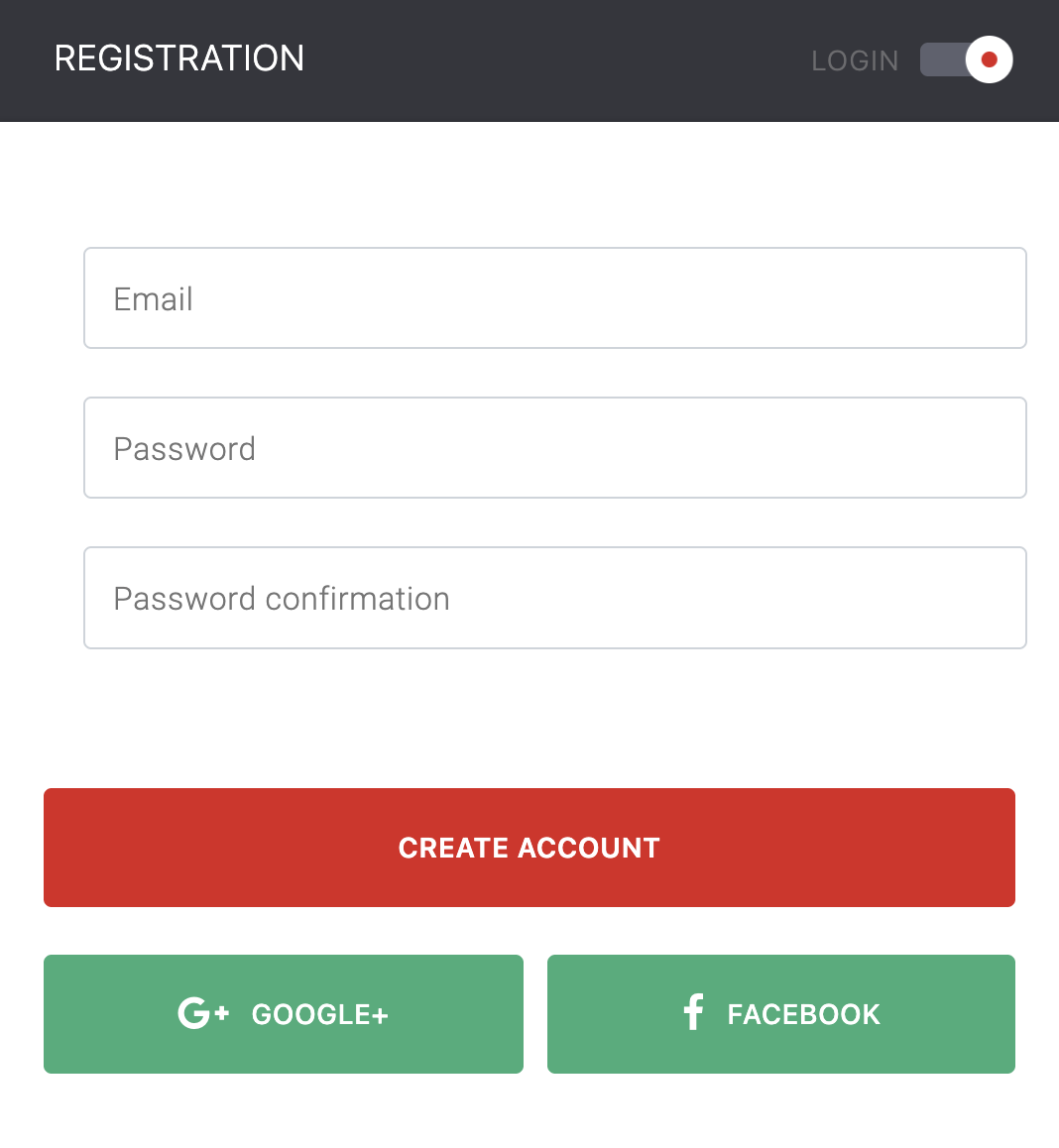
Why use email registration? This method gives you full control over your account credentials and doesn't require any third-party services. You'll receive a welcome email confirming your registration.
Option B: Sign Up with Google
For faster registration, you can use your existing Google account.
- Navigate to the login page.
- Below the registration form, you'll see social login options.
- Click on the "Google+" button.
- You'll be redirected to Google's login page (if you're not already logged in).
- Select your Google account and grant permission for our website to access your basic profile information (email address).
- You'll be automatically redirected back to our website with your account created.
Why use Google OAuth? This method is faster and more convenient—you don't need to remember another password. Your account is secured by Google's authentication system, and you can sign in with a single click in the future.
After registration, you'll receive a welcome email from the team with instructions and a link to get started.
Step 2: Automatic Redirect to Players Page
After successfully creating your account, you'll be automatically redirected to the Players page where you can find and claim your player profile.
Step 3: Finding Your Player Profile
On the Players page, find your card by looking for your jersey number and name. Click on your card to open your profile page.
If you can't find your profile, contact the team administrator to have it created.
Step 4: Linking Your Account to Your Profile
This is the most important step! Once you're on your player profile page, you'll see a special button that allows you to request a link.
- On your player profile page, scroll to the top section where your name and number are displayed.
- You should see a button that says "Link account" or similar text.
- Click this button to submit a link request.
- After clicking, the button will change to show your request status.
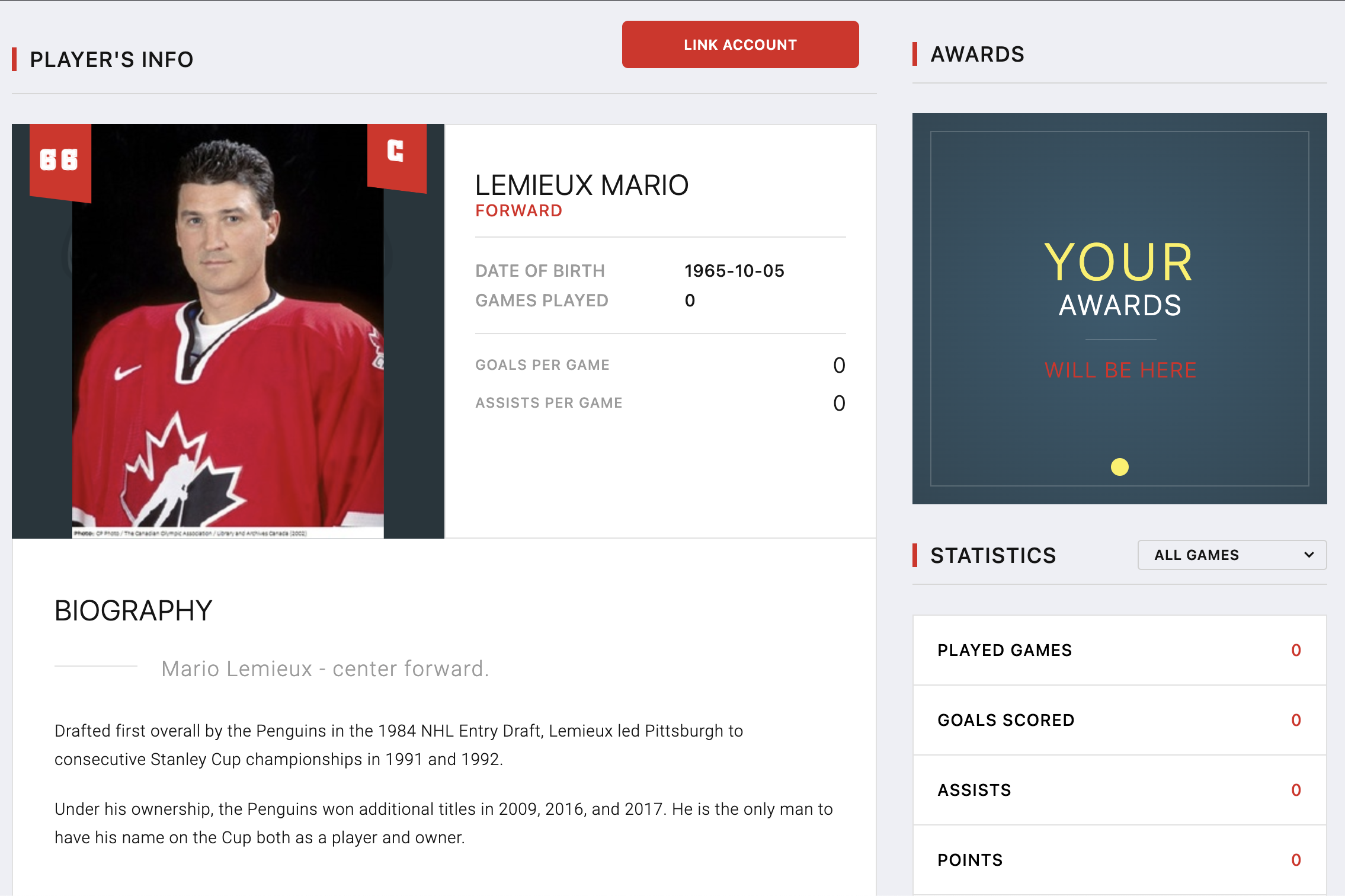
Why do you need to click this button? This creates an official request to link your user account with this specific player profile. It's a security measure to ensure that only the actual player can claim their profile—we don't want someone else claiming your profile by mistake!
Understanding Request Status
After submitting your link request, you'll see a status indicator on the player profile:
- Pending (orange dot): Your request has been submitted and is waiting for admin approval. This is normal and expected.
- Rejected (red dot): The request was rejected. This might happen if you accidentally selected the wrong profile or if there's a verification issue. You can contact the admin for clarification.

Step 5: Admin Approval Process
After you submit your request, the team administrator will receive a notification and review your link request to verify your identity. This approval process typically takes 1-2 days and ensures only legitimate players can claim their profiles.
Step 6: After Approval
Once the admin approves your link request, several things happen automatically:
- Instant Linking: Your user account is immediately connected to your player profile.
- Status Update: The link request is removed from the system (since it's now complete).
- Enhanced Access: You gain access to all the benefits of being a linked team member.
The next time you visit the website and sign in, you'll notice:
- When you visit your player profile, you won't see the link button anymore—because you're already linked!
- You'll be able to comment on blog posts and news articles.
- The system recognizes you as a team member throughout the site.
What You Gain After Linking
Once your account is linked to your player profile, you'll be able to:
- Update your profile image - Upload and manage your own profile photo
- Comment on posts - Participate in discussions on news, blog posts, and game recaps
- Read personal comments - View comments and feedback left on your profile
- Edit achievements - Manage and update your personal achievements
- View your statistics - Access your goals, assists, games played, and performance data
- See drill statistics - Track your performance and progress in team drills
- Team member recognition - Be verified as an official team member throughout the site
Troubleshooting Common Issues
I can't find my player profile
Solution: Your profile might not have been created yet. Contact the team administrator via the feedback page and provide your details (name, number, position). They'll create your profile in the system.
My link request was rejected
Solution: This might be a misunderstanding or verification issue. Contact the administrator via the feedback page to clarify your identity and request re-approval.
I accidentally linked to the wrong player profile
Solution: Contact the administrator via the feedback page immediately. The administrator can unlink your account and allow you to link to the correct profile.
I can't see the link button on any player profile
Solution: This might happen if:
- You're not signed in (the button only appears for authenticated users)
- You're already linked to a different player profile
- You're an administrator (admins can't link to player profiles)
I used Google to sign up, but I want to add a password
Solution: Currently, accounts created via Google OAuth don't require passwords. You can continue using Google to sign in. If you need to change your authentication method, contact the administrator.
Signing In for Future Visits
After your initial registration and linking, signing in is even easier:
For Email/Password Users:
- Go to the login page
- Make sure you're on the Login side (left side of the card)
- Enter your email and password
- Optionally check "Remember me" to stay signed in longer
- Click Login
For Google Users:
- Go to the login page
- Click the Google+ button
- If you're already signed into Google in your browser, you'll be logged in instantly
After signing in, if you're already linked to a player profile, you'll be redirected to the home page instead of the Players page.
Privacy and Security
We take your privacy and security seriously:
- Email Privacy: Your email address is not displayed publicly on the website.
- Secure Passwords: If you use email/password registration, your password is encrypted and securely stored.
- OAuth Security: When using Google sign-in, we only access your email address—nothing else from your Google account.
- Admin Oversight: The verification process ensures only legitimate players can claim profiles.
- Data Protection: Your personal information is protected according to standard data protection practices.
Need Help?
If you encounter any issues during this process or have questions, don't hesitate to reach out:
- Contact the team administrator via email
- Speak with coaching staff who can forward your request
- Use the feedback form on the website (if available)
We want to make sure every player has a smooth experience claiming their profile!
Summary
Let's recap the entire process:
- Create an account using email/password or Google sign-in
- Navigate to the Players page (you'll be redirected there automatically)
- Find your player profile by looking for your number and name
- Click the "Link account" button to submit your request
- Wait for admin approval (usually within 1-2 days)
- Enjoy your linked account with full team member benefits!
By linking your account to your player profile, you become an active, verified member of our online team community. You'll be able to engage with content, view your statistics, and enjoy a personalized experience on our website. Welcome to the team's digital home!